Pages

Showing posts with label Document Proofing. Show all posts

Sunday, April 21, 2013

Document proof reading in MS office 2007

Manual document proofing in Microsoft word 2007


Document proofing is the art of finding and correcting typing, spelling and grammar errors. Once your office 2007 application is properly configured, see  [Setting your Microsoft word 2007 application for proofing], 
Your office word 2007 will auto check every word you type for grammar, spelling and typographical errors and underline every word it considers not part of English if your language preference is set to English. language setting in office Word 2007

Your word processor in this case office word 2007 will also under wavy-line every sentence it considers poor English. This can either be a wrong spelled word or a poor grammatical occurrence in your document.

The red wavy line under your typed word is considered a spelling error, While a green wavy line under a sentences is due grammatical error.

You can correct those errors by right clicking on the affected sentence or word and choosing the correct suggestion from the pop up dialog box. The other way round is to use the spelling and grammar utility found in your office 2007 application

Saturday, April 20, 2013

Document proofing in MS office 2007

Document proofing in MicroSoft office 2007


Document proofing is the art of finding and correcting typing, spelling and grammar errors. Proofing May be automatic meaning that the application auto corrects known errors like character casing, spelling and grammar that occurs while the user is typing. [see Manual Document proofing].

To configure Microsoft word 2007 to automatically correct errors associated with typing, spelling and grammer, do the following;

Step 1
 a) Click on word options under the office button, 

b) then proofing

 
step 2
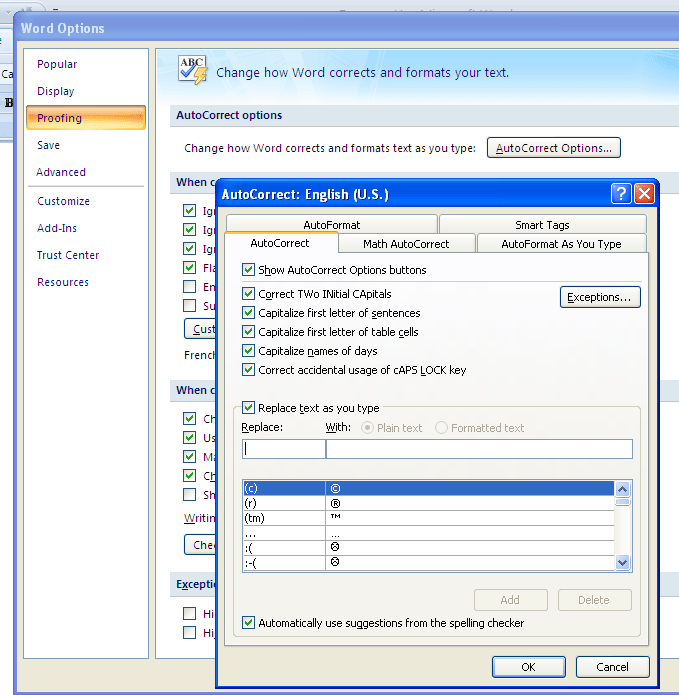
Click on the AutoCorrect Options button to change how word corrects and formats text as you type

Step 3
In the AutoCorrect dialog box that opens, check the check boxes that corresponds to your preference and click OK


Step 4
Under "when correcting spelling in Microsoft office programs" label
check and uncheck appropriate checkboxes.


Step 5
under "when correcting spelling and grammar in Word" repeat step 4


You can choose to hide spelling and grammatical errors in the current document you are working on or all Microsoft Word documents just by checking the hide spelling errors and grammar checkboxes under Exceptions

TweetMe